2. Python IDEs: IDLE, VS Code, Jupyter Notebook & PyCharm
An Integrated Development Environment (IDE) is a software application that consolidates essential developer tools into a single graphical user interface. While a basic text editor (like Notepad) only allows typing text, an IDE provides syntax highlighting, auto-completion (IntelliSense), an integrated debugger, a terminal console, and package management. Different IDEs serve distinct pharmaceutical workflows: Jupyter Notebook is ideal for exploratory pharmacokinetics and step-by-step data analysis, VS Code is a versatile lightweight editor for building complete pharmacy applications, and IDLE is the lightweight default environment bundled with Python.
🛠️ Step-by-Step Installation Guides for Each Tool
To write and run code, you only need two things:
The behind-the-scenes brain that calculates your pediatric dosages and solves pharmacy math.
The screen where you type code with color-coding and automatic spelling/error checks.
Installing Python 3 (The Core Engine)
Required on all computers to run pharmaceutical scriptsPython reads your instructions almost like plain English. When you install Python, you get the interpreter that executes your calculations (like Young's Rule child doses or drug solubility).

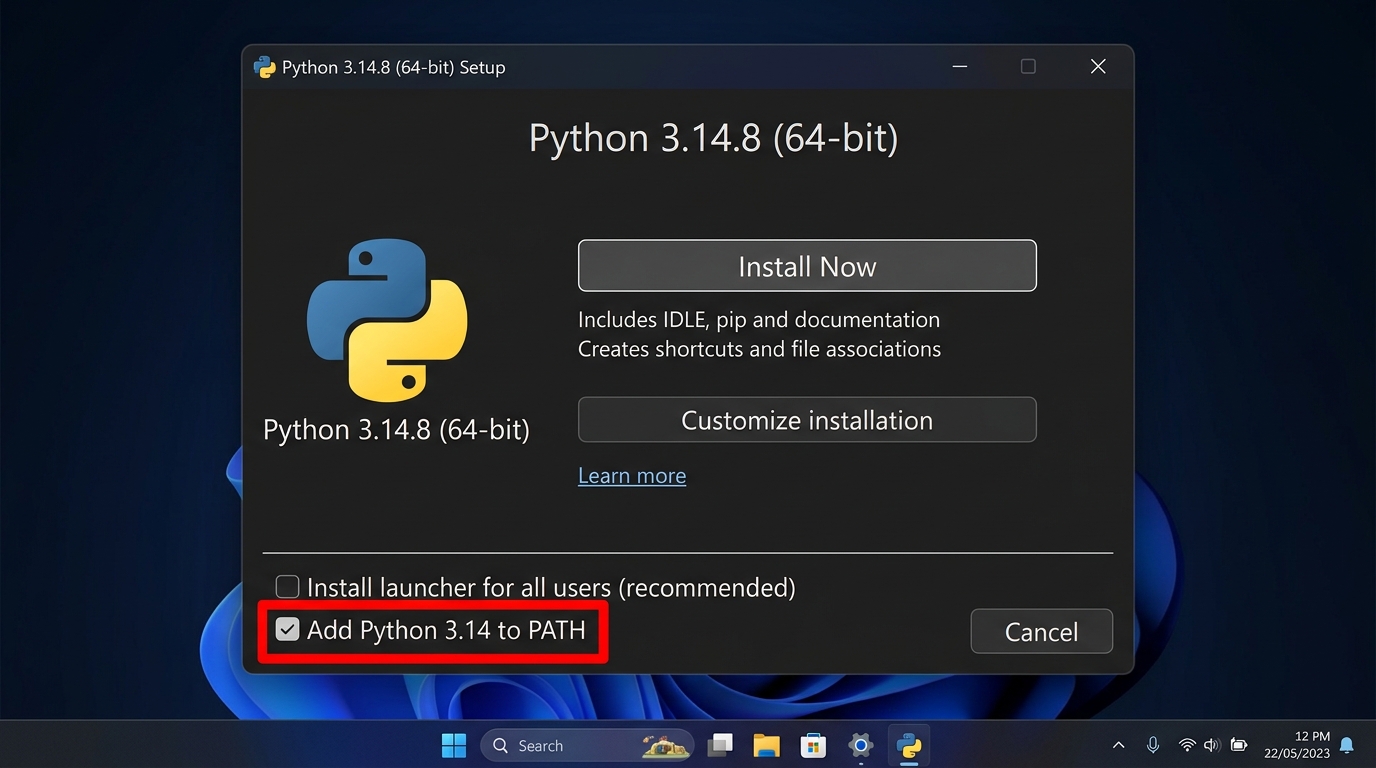
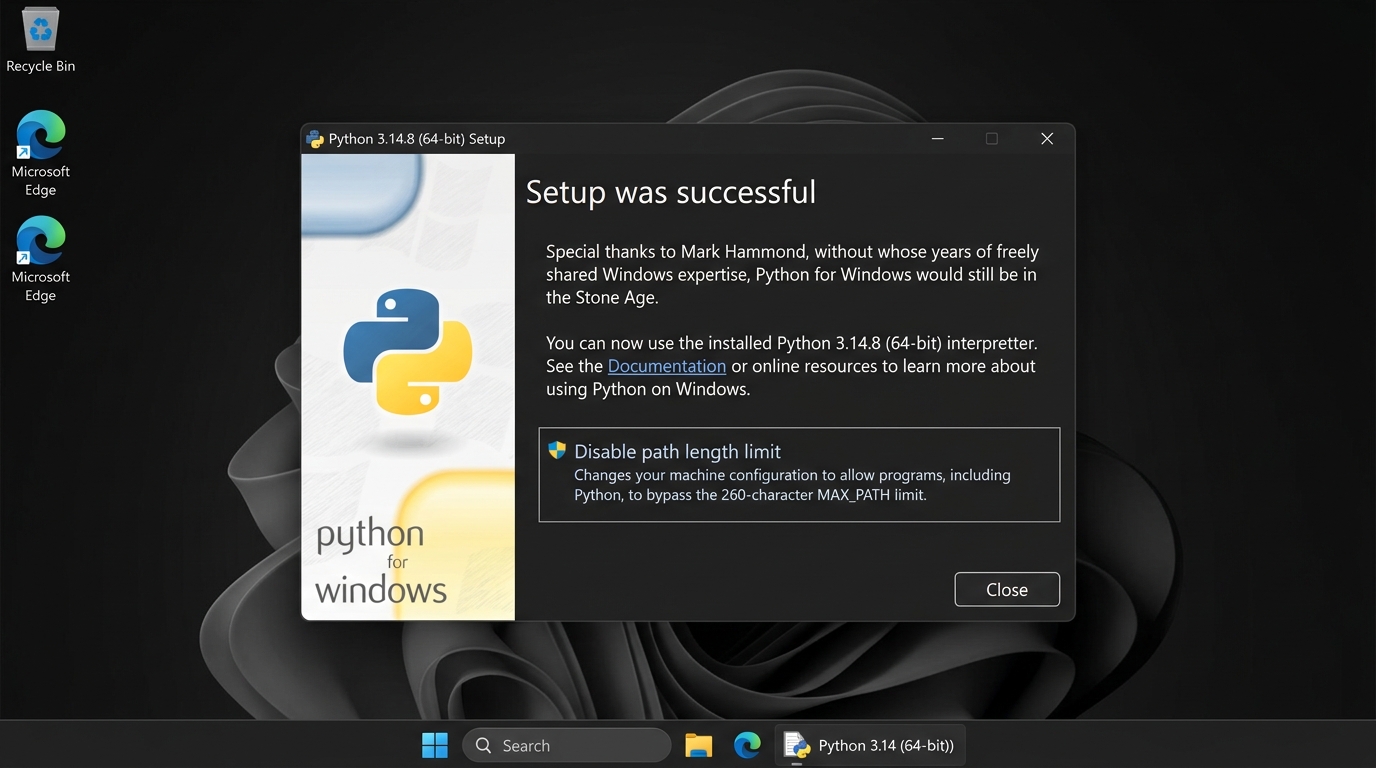
- 1.Download: Open your browser, visit python.org/downloads and click the yellow download button.
- 2.Check PATH: Open the downloaded file. On the very first screen, tick the box "Add python.exe to PATH".
- 3.Click Install Now: Python will install on your PC within 1-2 minutes.
- 4.Test: Open Command Prompt (press Win + R, type
cmd), and typepython --version. If it prints Python 3.x, you are ready!
Visual Studio Code (Your Smart Coding Notebook)
Best free code editor by MicrosoftThink of VS Code like Microsoft Word with spellcheck for programming. When you make a typing mistake, VS Code shows a red wavy line immediately so you can fix it before running your lab calculation.

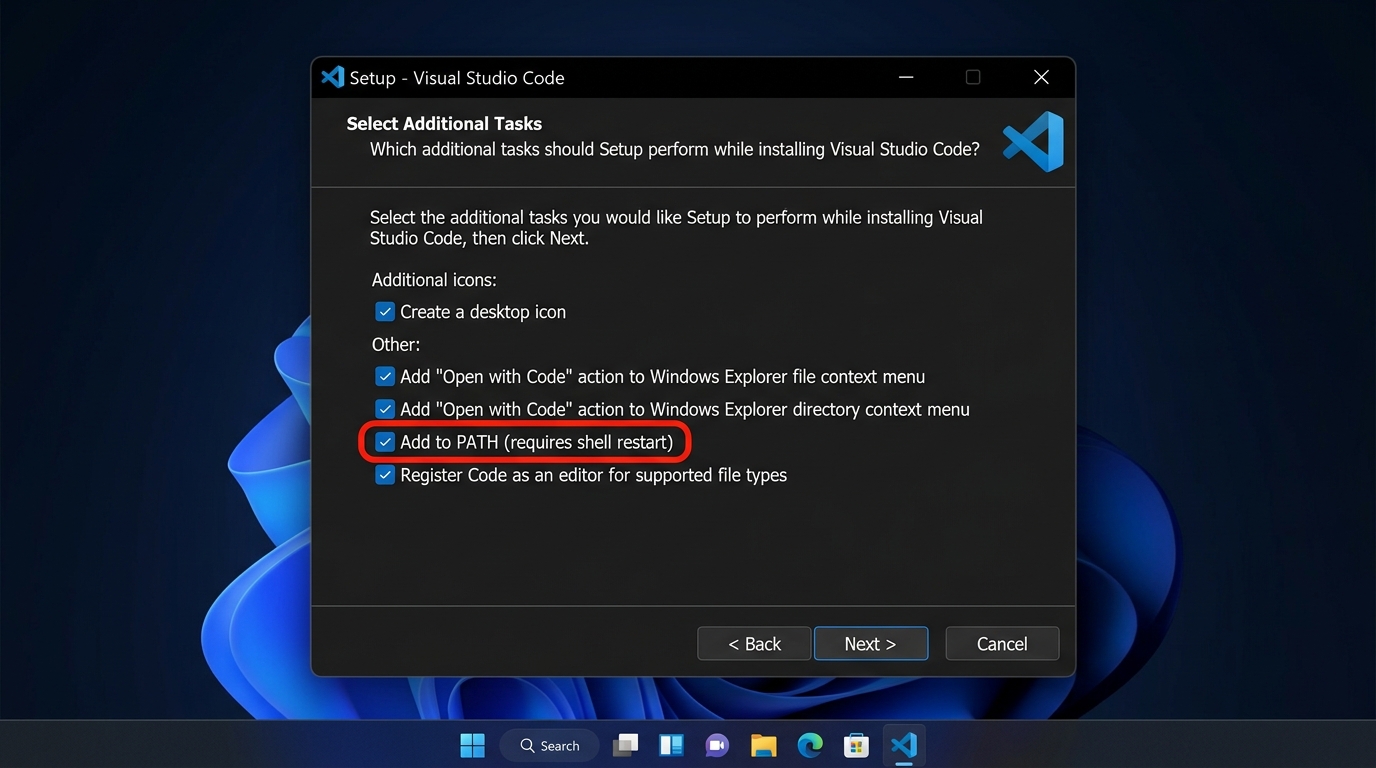
- 1.Download: Go to code.visualstudio.com and download the installer.
- 2.Install: Run the setup and keep clicking Next with default options checked.
- 3.Add Python Support: Open VS Code, click the Extensions icon (or press Ctrl + Shift + X), type "Python", and click Install.
- 4.Write & Run: Create a new file
dosage.py, write your calculation, and click the triangle Play button at the top-right!
Jupyter Notebook (Interactive Lab Notebook)
Best for pharmacology graphs, kinetics & practical assignmentsJupyter Notebook lets you run code one calculation box at a time. You can see drug concentration curves and tables right below your formula without re-running the entire file.
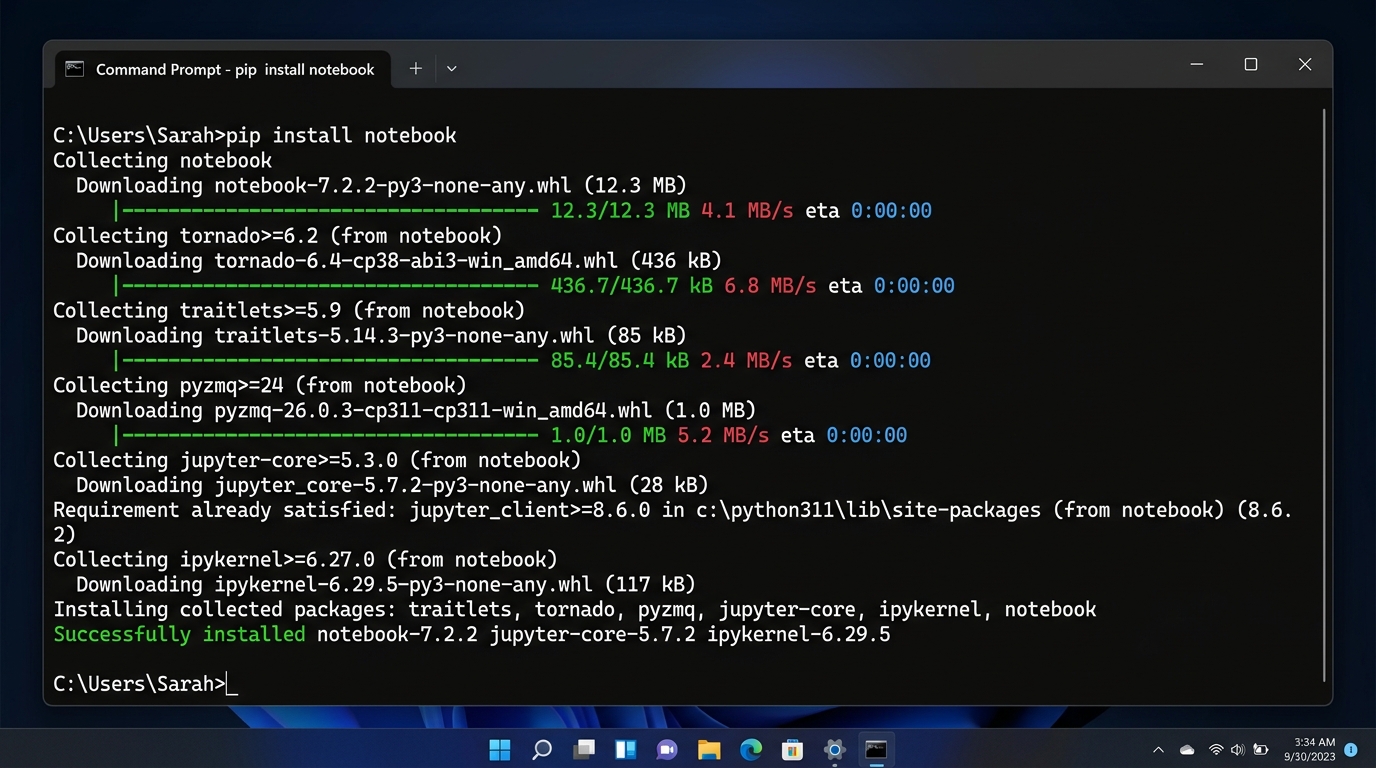
pip install notebook in Command Prompt.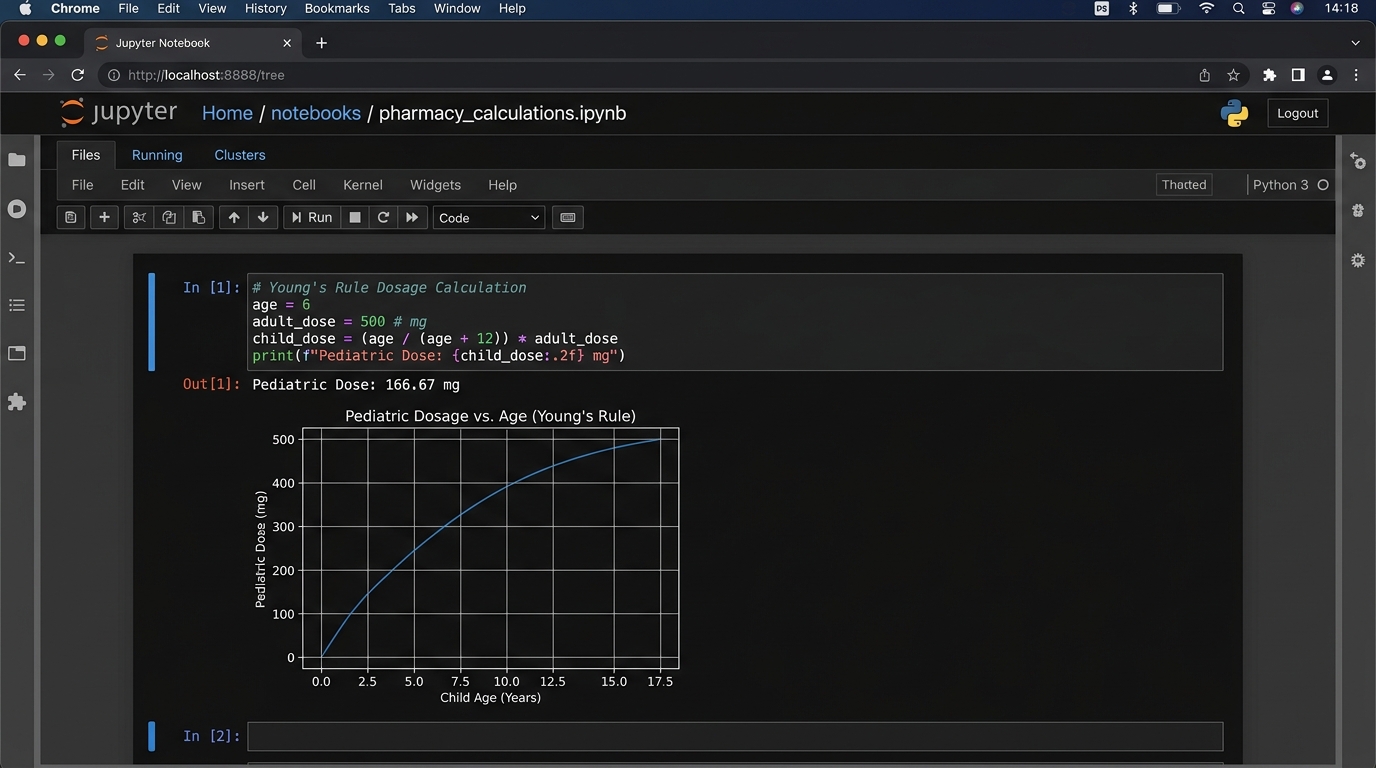
- 1.Open Terminal: Press Win + R, type
cmd, and press Enter. - 2.Install: Type
pip install notebookand press Enter. - 3.Launch: Type
jupyter notebook. It will automatically open in your web browser. - 4.Run Cell: Click New → Notebook, write your formula, and press Shift + Enter to see the answer instantly!
PyCharm Community Edition (Professional IDE)
Complete dedicated environment by JetBrainsPyCharm is a complete digital lab built exclusively for Python. It automatically creates isolated virtual environments so your pharmacy packages never conflict with each other.

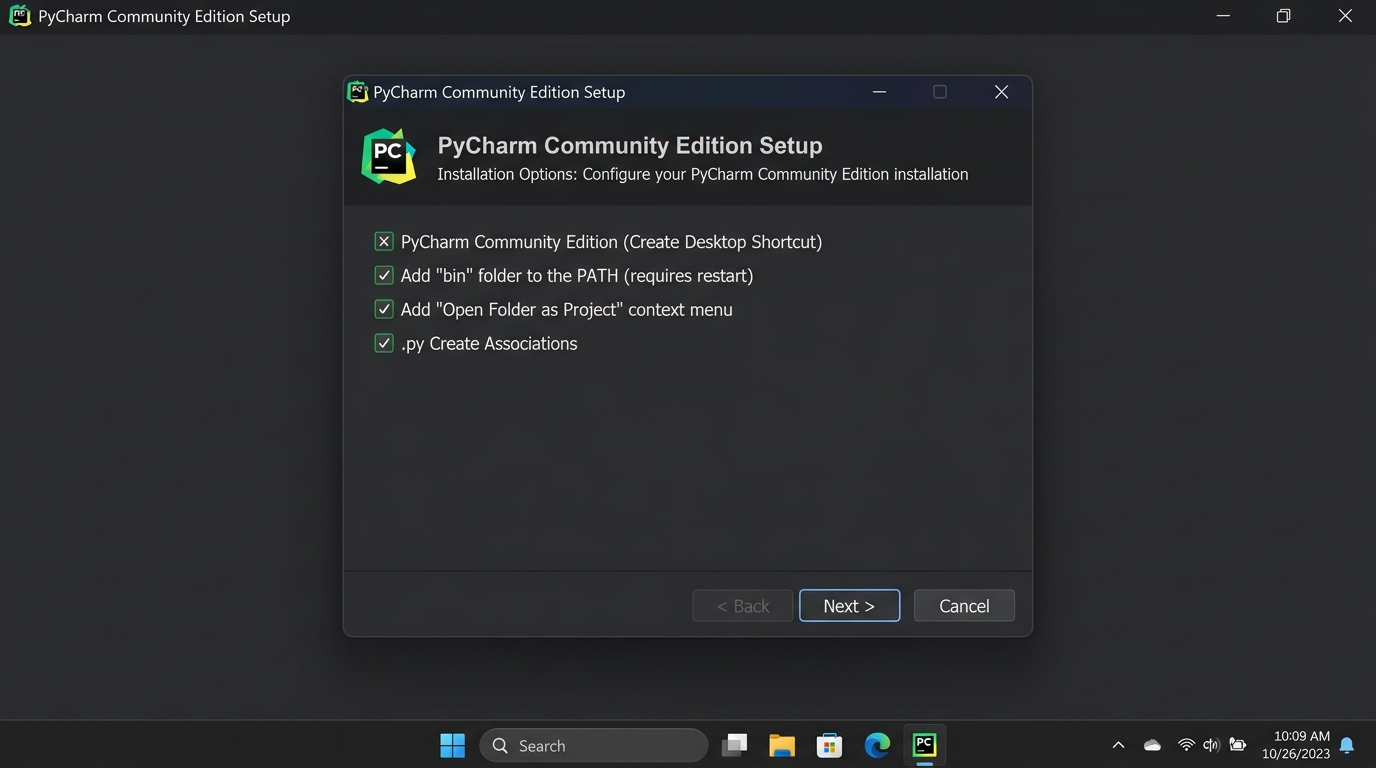
- 1.Download Free Version: Visit jetbrains.com/pycharm/download and download the free Community Edition.
- 2.Install: Run the installer and check the box "Add bin folder to PATH".
- 3.Start Project: Open PyCharm, click "New Project", and click "Create".
Google Colab (Zero-Install Online Option)
Works directly in your phone or laptop browser without installing anythingGoogle Colab is like Google Docs for Python programming. You don't need to install anything on your laptop. All scientific packages (numpy, pandas, matplotlib) are already built-in, and your work saves automatically to Google Drive.
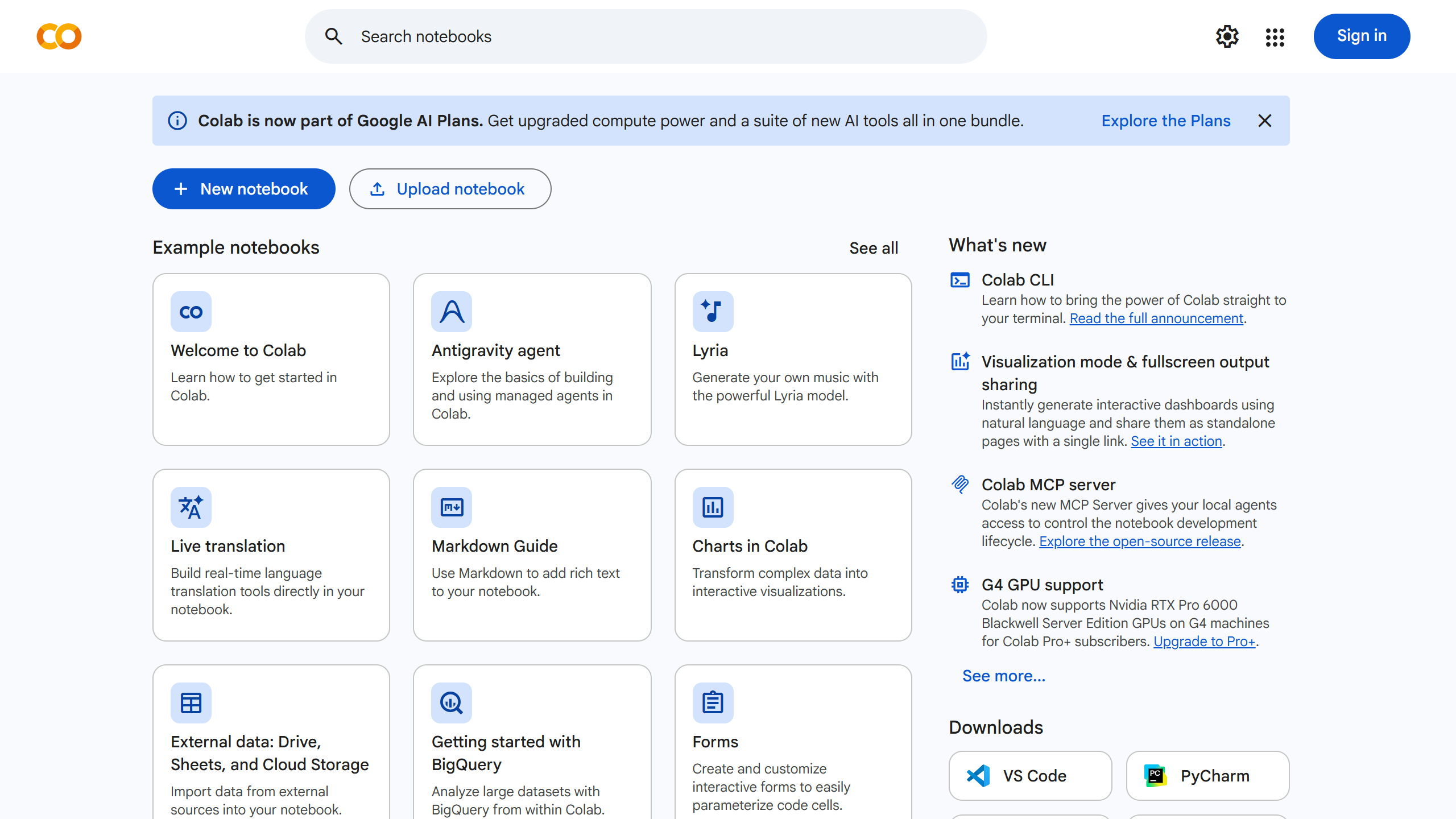
- 1.Open Colab: Visit colab.research.google.com in your browser.
- 2.Sign In: Log in with your regular Google / Gmail account.
- 3.Calculate & Share: Click "New Notebook", write your formula, press Shift + Enter, and click Share to submit practical assignments!
Choosing the right tool for laboratory work: Jupyter Notebook allows running individual cells of code to visualize graphs inline alongside chemical explanations, while VS Code is used for building multi-file laboratory management systems.
# Running an inline calculation cell in Jupyter Notebook
import math
half_life_hours = 3.5
elimination_rate_k = math.log(2) / half_life_hours
print(f"Elimination rate constant (Ke): {elimination_rate_k:.4f} hr^-1")| IDE Name | Best Used For | Key Advantage for Pharmacy | Learning Curve |
|---|---|---|---|
| IDLE | Quick syntax tests & simple scripts | Zero installation needed (comes with Python) | Very Low |
| Jupyter Notebook | PK graphing & statistical analysis | Interactive cell-by-cell execution with inline charts | Low |
| VS Code | Multi-file pharmacy desktop/web apps | Fast, modular, extensive extensions support | Moderate |
| PyCharm | Large enterprise pharmaceutical systems | Advanced debugging and code refactoring tools | Moderate to High |
- IDLE: Bundled with Python, lightweight, suitable for absolute beginners learning basic syntax.
- VS Code: Open-source, highly extensible via plugins (Python, Pylance), integrated terminal, Git version control.
- Jupyter Notebook: Cell-based execution, displays tables, markdown notes, and Matplotlib plots inline; standard in data science.
- PyCharm: Professional full-featured IDE with deep static code analysis and virtual environment managers.
IDE एक ऐसा सॉफ्टवेयर है जहाँ हम कोड लिखते, टेस्ट करते और रन करते हैं। जुपिटर नोटबुक (Jupyter) ग्राफ और लैब नोट्स के लिए सबसे अच्छा है, जबकि VS Code बड़े प्रोजेक्ट्स के लिए बेहतरीन है।